
Choose how the camera displays brightness information in video mode. The selected type of brightness information can be displayed by placing a check (M) next to o in the list for Custom Setting g21 [Custom monitor shooting display].
| Option | Description |
|---|---|
| [Histogram] | Display a histogram.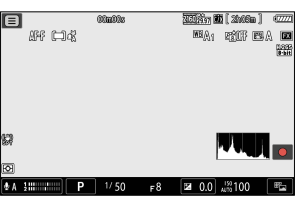 |
| [Wave-form monitor] | The camera displays a wave-form monitor. |
Highlight [Histogram] or [Wave-form monitor], and press the multi selector right to change the display.
- [Size]: Choose either [Large] or [Standard] as the size of the histogram or wave-form monitor display.
- [Transparency]: Choose the level of transparency for the histogram or wave-form monitor from [1 (low transparency)], [2], or [3 (high transparency)].
- [Position]: Choose [Top right], [Bottom right], [Top left], or [Bottom left] as the display position of the histogram or wave-form monitor.
Brightness information display when [R3D NE 12-bit (R3D)] is selected for [Video file type] in the video recording menu
When [R3D NE 12-bit (R3D)] is selected, a warning line will appear in the displayed brightness information ([Histogram], [Wave-form monitor]) as a guideline for overexposed highlights. If the brightness of the video being recorded exceeds this line, the recorded video will be overexposed.


- The level of brightness that results in overexposure varies depending on the ISO sensitivity. The warning line will appear at a brightness level that corresponds to the brightness settings for [Base ISO sensitivity] and [ISO sensitivity] in [ISO sensitivity settings] in the video recording menu.