
Features available with “C” firmware version 1.10
The ZR Reference Guide is for “C” firmware version 1.00 (the latest version of the ZR Reference Guide is available from the Nikon Download Center). This chapter details the new features and changes introduced with camera “C” firmware version 1.10. The two documents are to be read together.
- Changes made with “C” firmware version 1.10
- Extended maximum length of time for each video
- Changes when [R3D NE 12-bit (R3D)] is selected for [Video file type] in the video recording menu
- Support for video-specific file names
- Synchronize timecodes with external devices connected to the external microphone/line input connector
- Changes to the number of files that can be displayed in Custom Setting g15 [3D LUT] > [Import CUBE file]
- New setup menu item: [Power-on lamp energy saver]
Changes made with “C” firmware version 1.10
Video recording
- Extended maximum length of time for each video (Extended maximum length of time for each video)
- Changes when [R3D NE 12-bit (R3D)] is selected for [Video file type] in the video recording menu (Changes when [R3D NE 12-bit (R3D)] is selected for [Video file type] in the video recording menu)
- Changes to the brightness information display (Changes to the brightness information display)
- [R3D NE 12-bit (R3D)] can be set when the shooting mode is b ([R3D NE 12-bit (R3D)] can be set when the shooting mode is b)
- Support for video-specific file names (Support for video-specific file names)
- New video recording menu item: [Video file naming] (New video recording menu item: [Video file naming])
- Play back videos recorded with video-specific file names (Play back videos recorded with video-specific file names)
- Synchronize timecodes with external devices connected to the external microphone/line input connector (Synchronize timecodes with external devices connected to the external microphone/line input connector)
- New [LTC signal input] option for [Timecode] in the video recording menu (New [LTC signal input] option for [Timecode] in the video recording menu)
- Synchronizing timecodes with external devices (Synchronizing timecodes with external devices)
Controls
- Changes to the number of files that can be displayed in Custom Setting g15 [3D LUT] > [Import CUBE file] (Changes to the number of files that can be displayed in Custom Setting g15 [3D LUT] > [Import CUBE file])
Displays
- New setup menu item: [Power-on lamp energy saver] (New setup menu item: [Power-on lamp energy saver])
Extended maximum length of time for each video
The maximum length of time that can be recorded for each video has been extended up to 360 minutes for certain video file types. The maximum length of time can be extended when one of the following options are selected for [Video file type] in the video recording menu.
- [ProRes 422 HQ 10-bit (MOV)] (except when the frame rate is 119.88p or 100p)
- [H.265 10-bit (MOV)] (except when the frame rate is from 239.76p to 100p)
- [H.265 8-bit (MOV)] (except when the frame rate is from 239.76p to 100p)
- [H.264 8-bit (MP4)] (except slow-motion video)
Changes when [R3D NE 12-bit (R3D)] is selected for [Video file type] in the video recording menu
Changes to the brightness information display
When [R3D NE 12-bit (R3D)] is selected, a warning line will appear in the displayed brightness information ([Histogram], [Wave-form monitor]) as a guideline for overexposed highlights. If the brightness of the video being recorded exceeds this line, the recorded video will be overexposed.


- The level of brightness that results in overexposure varies depending on the ISO sensitivity. The warning line will appear at a brightness level that corresponds to the brightness settings for [Base ISO sensitivity] and [ISO sensitivity] in [ISO sensitivity settings] in the video recording menu.
- The brightness information can be displayed by placing a check (M) next to o in the list for Custom Setting g21 [Custom monitor shooting display].
- The display type ([Histogram], [Wave-form monitor]) can be selected using Custom Setting g19 [Brightness information display].
Cautions: Selecting [R3D NE 12-bit (R3D)]
- When set to [R3D NE 12-bit (R3D)], overexposure will occur even if the brightness is not at the upper limit (on the right edge for [Histogram], on the upper edge for [Wave-form monitor]). Check the brightness using the warning line when shooting.
- When set to [R3D NE 12-bit (R3D)], we recommend setting [Vignette control] to [Off] in the video recording menu. If [Vignette control] is set to an option other than [Off], the correction for the drop in brightness at the edges of the picture will cause the brightness of the video being recorded to exceed the warning line, which may result in overexposure.
[R3D NE 12-bit (R3D)] can be set when the shooting mode is b
[Video file type] can now be set to [R3D NE 12-bit (R3D)] in the video recording menu even if the shooting mode is b. However, the shooting mode will change to M.
Cautions: Combinations with shooting mode b
- If you set the shooting mode to b when [R3D NE 12-bit (R3D)] is selected for [Video file type] in the video recording menu, you will not be able to record video. Setting the shooting mode to anything other than b will switch the shooting mode to M and enable video recording.
- If the shooting mode switches to M after selecting [Video file type] > [R3D NE 12-bit (R3D)] in the video recording menu in b mode, the shooting mode for photo mode will also switch to M.
Support for video-specific file names
New video recording menu item: [Video file naming]
A [Video file naming] item has been added to the video recording menu. Select [ON] for [Video file naming] > [Video clip name] to enable video recording using a video-specific file name. Video file names are composed of information such as the camera ID, reel number, and recording date, making them suitable for editing large numbers of videos, or when shooting with multiple cameras.
Videos can be recorded with video file names only when all the following conditions are met:
- The video recording destination is CFexpress/XQD card slot.
- The destination memory card has been formatted to exFAT.
- [ON] is selected for [Video file naming] > [Video clip name] in the video recording menu.
Video file names are composed as follows.

| 1 | Camera ID This indicates the camera ID. |
|---|---|
| 2 | Reel number This number is assigned to each memory card to prevent the same file name from being created on the same camera.
|
| 3 | Clip number This video number is incremented by 1 for each video.
|
|---|---|
| 4 | Month/Day This is the month and day that recording started. |
| 5 | Random ID This ID is automatically set for each clip to prevent duplication. |
Adjust settings for [Video file naming] in the video recording menu.
| Option | Description |
|---|---|
| [Video clip name] | Select [ON] to record videos with video file names. |
| [Camera ID] | Set the camera ID.
|
| [Reel number] | Set a new reel number.
|
| [Clip number] | Set a 3-digit number for the clip number.
|
| [Clip number serial mode] | Select [ON] to record video with a serial number that starts from the number set in [Clip number]. Select [OFF] to record video with a serial number that continues from the largest clip number saved on the memory card. If there are no videos with video file names saved on the memory card, videos will be recorded with a serial number starting from “001”. |
The camera ID, reel number, and clip number of the video file name are displayed on the shooting display.

Cautions: Recording with video file names
- When recording video with video file names, the recorded video is saved in “CLIPDATA” folder > “CLIP” folder on the memory card. This is a different destination from the save destination for regular photos and videos.
- When recording video with video file names, the maximum number of files that can be saved is 999. When number of files saved in the “CLIP” folder reaches the maximum clip number of 999, video cannot be recorded. Replacing the memory card, or setting [Video clip name] to [OFF] and shooting with regular file names, will allow you to record video again.
- When [Video clip name] is set to [ON], you will not be able to record video even if the photo/video selector is set to VIDEO in the following situations.
- The video recording destination is a microSD card slot.
- The destination memory card has been formatted to FAT32.
- When [ON] is selected for [Video clip name], the following options are not available in the video recording menu.
- [Storage folder]
- [File naming]
- [Destination]
Play back videos recorded with video-specific file names
Videos recorded with video file names can be played back only when all of the following conditions are met. Additionally, regular photos and videos cannot be played back under these circumstances.
- Videos with video file names are saved on a memory card in the CFexpress/XQD card slot.
- The photo/video selector is set to VIDEO.
- [ON] is selected for [Video file naming] > [Video clip name] in the video recording menu.
Depending on the playback screen, video file name information such as the reel number and clip number is displayed.
- Full-frame playback (basic information)

1 Camera ID, reel number, clip number, month/day, random ID - Full-frame playback (exposure data, etc., other than basic information)

1 Camera ID, reel number, clip number - Thumbnail playback


1 Folder name 2 Clip number
Cautions: Playing videos with video file names
- When playing videos with video file names, the following options are not available in the playback menu.
- [Delete]
- [Playback folder]
- [Copy image(s)]
- During playback of regular photos or videos, videos with video file names are not available in the following playback menus.
- [Delete]
- [Copy image(s)]
Synchronize timecodes with external devices connected to the external microphone/line input connector
New [LTC signal input] option for [Timecode] in the video recording menu
An [LTC signal input] option has been added to [Timecode] in the video recording menu. Select [ON] for [LTC signal input] to synchronize timecodes with external devices connected to the external microphone/line input connector.
- The following external device has been tested and approved for use:
- Tentacle Sync SYNC E Timecode Generator
- Also see the documentation supplied with the external device.
Synchronizing timecodes with external devices
- Match the frame rates of the camera and external device.
- If the value is not a match for that chosen with the camera, timecodes will not be recorded or output via HDMI. Match the frame rate for the external device to the video recording frame rate as follows:
Video recording frame rate External device frame rate 239.76p, 119.88p, 59.94p, 29.97p 29.97 fps 200p, 100p, 50p, 25p 25 fps 23.976p 23.98 fps
- If the value is not a match for that chosen with the camera, timecodes will not be recorded or output via HDMI. Match the frame rate for the external device to the video recording frame rate as follows:
- Open the cover for the camera’s microphone/headphone/remote cord connectors (q).
- Connect the external device (e) to the camera’s external microphone/line input connector (w).

- Select [On] or [On (with HDMI output)] for [Timecode] > [Record timecodes] in the camera’s video recording menu.
Timecode recording will begin. The timecode appears in the shooting display.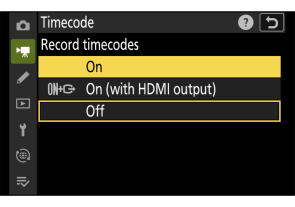
- When [Off] is selected for [Timecode] > [Record timecodes] in the video recording menu, the [LTC signal input] setting cannot be changed.
- Select [ON] for [Timecode] > [LTC signal input] in the camera's video recording menu.
The camera will begin to receive timecodes from the external device.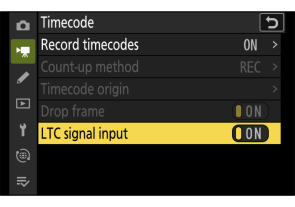
- If no timecode is received, the shooting display will show “--:--:--:--” (or “00:00:00.00” when an external device is connected via HDMI). No timecodes will be recorded if filming is begun at this stage.
- Sound will not be output to headphones or HDMI.
- Timecodes are received from either the left (1) or right (2) output channel of the external device. The output channel will differ depending on the external device. See the documentation provided with the external device regarding which channel will be output.
- If the external device timecode is output on both the left (1) and right (2) channels, the timecode will be received from the left (1) channel.
- If an external device is not connected when [LTC signal input] is set to [ON]:
- Timecodes will not be received.
- Sound will be recorded from either the built-in microphone or an external microphone attached to the digital accessory shoe.
Cautions: Receiving timecodes from an external device connected to the external microphone/line input connector
- After acquiring the timecode, you can continue to record the timecode even if the connection with the external device is ended. If the connection with the external device is ended, the TC background color displayed on the shooting display changes to red.
- Timecodes will not be recorded if [H.264 8-bit (MP4)] is selected for [Video file type] in the video recording menu.
- The options selected for [Timecode] > [Count-up method], [Timecode origin], and [Drop frame] in the video recording menu cannot be changed if [LTC signal input] is set to [ON].
- Timecodes cannot be received from an external device connected to the external microphone/line input connector at the same time that timecodes are being received using UltraSync BLUE.
Changes to the number of files that can be displayed in Custom Setting g15 [3D LUT] > [Import CUBE file]
The number of LUTs (CUBE files) that can be imported from a memory card with Custom Setting g15 [3D LUT] > [Import CUBE file] has been increased to a maximum of 50.
New setup menu item: [Power-on lamp energy saver]
A [Power-on lamp energy saver] item has been added to the setup menu. When this item is set to [OFF], the power-on lamp will remain lit continuously even after approximately 5 seconds have passed since the camera was turned on.
Power-on lamp energy saver
When [OFF] is selected for [Power-on lamp energy saver], the power-on lamp remains lit while the power is on. This allows you to check whether the power is on or off even when shooting with the monitor closed.