f1: Customize i Menu
G button UA Custom Settings f: Controls
Choose the items listed in the i menu displayed when the i button is pressed in photo mode.
- Highlight a position in the i menu, press J, and select the desired item.
The following items can be assigned to the i menu.
Option 0 J [Choose image area] Adjusting Image Area Settings f [Tone mode] Tone mode 8 [Image quality] Adjusting Image Quality o [Image size] Choosing an Image Size E [Exposure compensation] Exposure Compensation 9 [ISO sensitivity settings] ISO Sensitivity m [White balance] White Balance h [Set Picture Control] Set Picture Control g [Set Picture Control (HLG)] Set Picture Control (HLG) p [Color space] Color space y [Active D-Lighting] Active D‑Lighting q [Long exposure NR] Long exposure NR r [High ISO NR] High ISO NR h [Skin softening] Skin softening i [Portrait impression balance] Portrait impression balance w [Metering] Metering c [Flash mode] Flash mode Y [Flash compensation] Flash compensation s [Focus mode] Focus Mode 7 [AF-area mode/subj. detection] AF-Area Mode, Subject Detection u [Vibration reduction] Vibration reduction t [Auto bracketing] Auto bracketing $ [Multiple exposure] Multiple exposure 2 [HDR overlay] HDR overlay 7 [Interval timer shooting] Interval timer shooting 8 [Time-lapse video] Time-lapse video 9 [Focus shift shooting] Focus shift shooting 5 [Pixel shift shooting] Pixel shift shooting F [Focus tracking with lock-on] a3: Focus tracking with lock-on L [Silent mode] Silent mode j [Pre-Release Capture options] d3: Pre-Release Capture options v [Release mode] Release Mode 6 [Shutter type] d6: Shutter type w [Custom controls (shooting)] f2: Custom controls (shooting) z [Exposure delay mode] d5: Exposure delay mode m [View mode (photo Lv)] d10: View mode (photo Lv) z [Split-screen display zoom] Split-screen display zoom W [Focus peaking] a11: Focus peaking 3 [Monitor brightness] Monitor brightness v [Warm display colors] d12: Warm display colors u [Airplane mode] Airplane mode W [Wireless remote connection (ML-L7)] Wireless remote (ML-L7) options W [Bluetooth remote cntrl connection] Bluetooth remote cntrl options
Split-screen display zoom
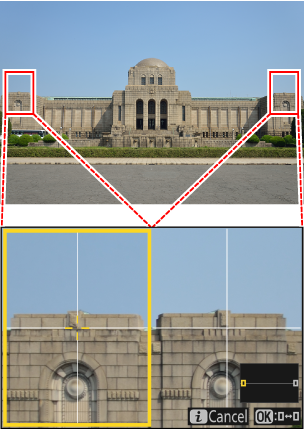
If [Split-screen display zoom] is assigned to the i menu, you can select [Split-screen display zoom] to simultaneously zoom in on two areas that are aligned horizontally but are in different parts of the frame (split-screen display zoom). The locations of the areas are indicated by the two frames (r) in the navigation window in the bottom right corner of the display.
- Zooming in simultaneously on two widely-separated but horizontally-aligned areas of the frame makes it easier to level pictures of buildings or other wide objects.
- Use the X and W (Q) buttons to zoom in and out.
- Press 4 or 2 to scroll the selected area left or right. Use the J button to switch between the two areas.
- Press 1 or 3 to scroll both areas up or down simultaneously.
- To focus on the subject at the center of the selected area, press the shutter-release button halfway.
- To exit split-screen display zoom, press the i button.