
Connecting to an Existing Network via a Wireless LAN (Wi-Fi Station Mode)
The camera connects to a computer on an existing network (including home networks) via a wireless router. The computer can still connect to the Internet while connected to the camera.
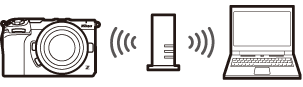
- Before proceeding, check that the Wireless Transmitter Utility (0The Wireless Transmitter Utility) is installed on the computer.
Connection to computers beyond the local area network is not supported. You can connect only to computers on the same network.
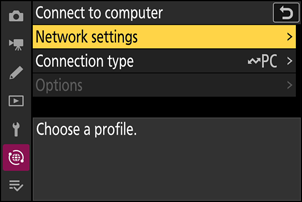
Select [Connect to computer] in the network menu, then highlight [Network settings] and press 2.
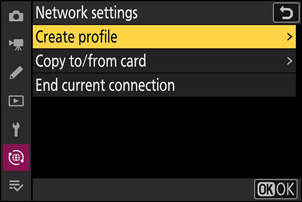
Highlight [Create profile] and press J.
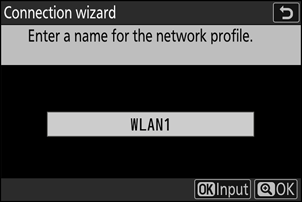
Name the new profile.
- To proceed to the next step without changing the default name, press X.
- Whatever name you choose will appear in the network menu [Connect to computer] > [Network settings] list.
- To rename the profile, press J. For information on text entry, see “Text Entry” (0Text Entry). Press X to proceed after entering a name.
Highlight [Search for Wi-Fi network] and press J.
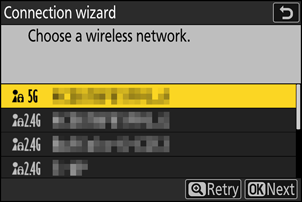
The camera will search for networks currently active in the vicinity and list them by name (SSID).
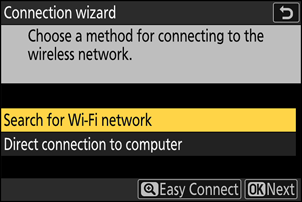
To connect without entering an SSID or encryption key, press X in Step 4. Next, highlight one of the following options and press J. After connecting, proceed to Step 7.
- Connecting to routers on open networks is not supported.
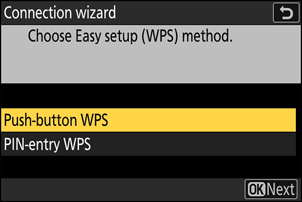
Option Description [Push-button WPS] For routers that support push-button WPS. Press the WPS button on the router and then press the camera J button to connect. [PIN-entry WPS] The camera will display a PIN. Using a computer, enter the PIN on the router. For more information, see the documentation provided with the router. Choose a network.
- Highlight a network SSID and press J.
- SSIDs containing characters that cannot be entered on the camera and those of open networks will not be displayed.
- The band on which each SSID operates is indicated by an icon.
- If the desired network is not displayed, press X to search again.
Hidden SSIDs
Networks with hidden SSIDs are indicated by blank entries in the network list.
- To connect to a network with a hidden SSID, highlight a blank entry and press J. Next, press J; the camera will prompt you to provide an SSID.
- Enter the network name and press X. Press X again; the camera will now prompt you to enter the encryption key.
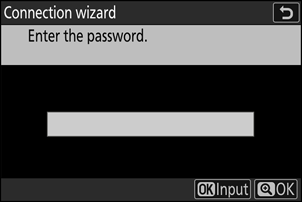
Enter the encryption key.
- Press J and enter the encryption key for the wireless router.
- For more information, see the documentation for the wireless router.
- Press X when entry is complete.
- Press X again to initiate the connection. The network SSID will be displayed for a few seconds when the connection is established.
Obtain or select an IP address.
Highlight one of the following options and press J.
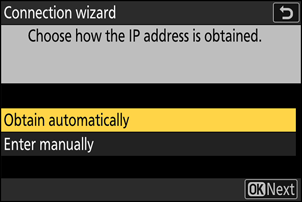
Option Description [Obtain automatically] Select this option if the network is configured to supply the IP address automatically. A “configuration complete” message will be displayed once an IP address has been assigned. [Enter manually] Enter the IP address and sub-net mask manually.
- Press J; you will be prompted to enter the IP address.
- Rotate the main command dial to highlight segments.
- Press 4 or 2 to change the highlighted segment and press J to save changes.
- Next, press X; a “configuration complete” message will be displayed. Press X again to display the sub-net mask.
- Press 1 or 3 to edit the sub-net mask and press J; a “configuration complete” message will be displayed.
Press J to proceed when the “configuration complete” message is displayed.
Start pairing.
When prompted, launch the Wireless Transmitter Utility on the computer.
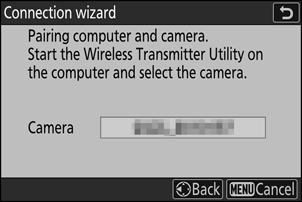
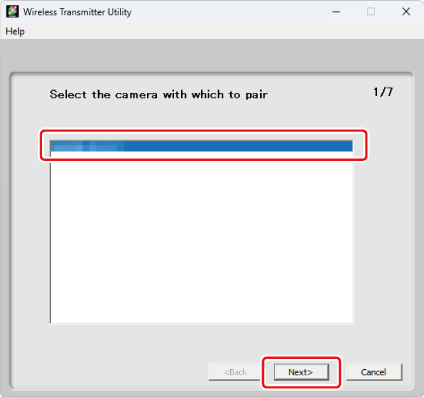
Select the camera in the Wireless Transmitter Utility.
Select the name displayed by the camera in Step 9 and click [Next].
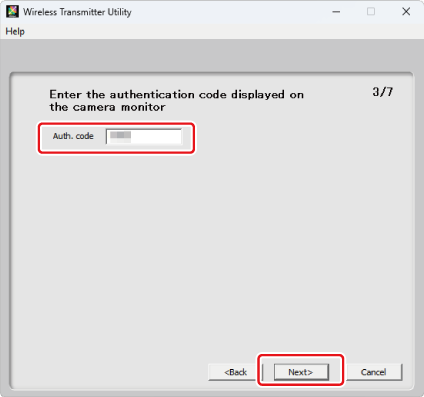
In the Wireless Transmitter Utility, enter the authentication code displayed by the camera.
- The camera will display an authentication code.
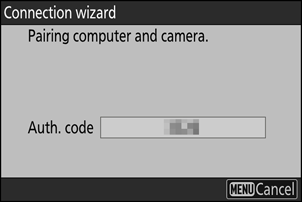
- Enter the authentication code in the dialog displayed by the Wireless Transmitter Utility and click [Next].
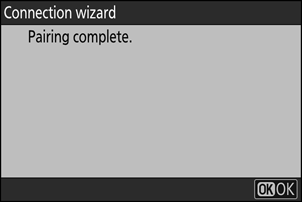
Complete the pairing process.
- When the camera displays the dialog as shown, press J.
- In the Wireless Transmitter Utility, click [Next]; you will be prompted to choose a destination folder. For more information, see online help for the Wireless Transmitter Utility.
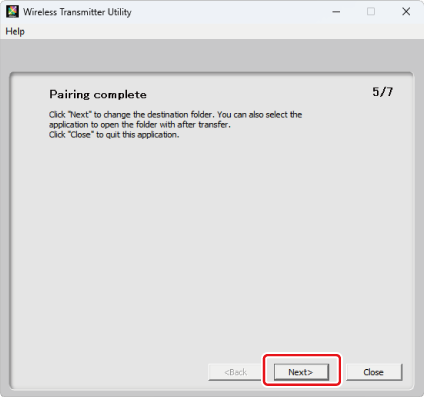
- A wireless connection will be established between the camera and computer when pairing is complete.
Check the connection.
When a connection is established, the profile name will be displayed in green in the camera [Connect to computer] menu.
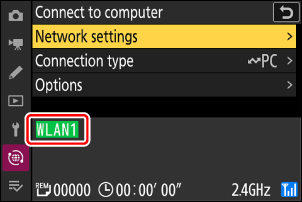
A wireless connection has now been established between the camera and the computer.
Pictures taken with the camera can be uploaded to a computer as described under “Uploading Pictures to a Computer” (0Uploading Pictures to a Computer).
For information on controlling the camera from a computer with NX Tether, see “Using NX Tether to Control the Wi-Fi-Connected Camera” (0Using NX Tether to Control the Wi-Fi-Connected Camera).