
Deleting Pictures
Follow the steps below to
Using the Delete Button
Press the O button to delete the current picture.
Select the desired picture with the multi selector and press the O button.
- A confirmation dialog will be displayed.
- To exit without deleting the picture, press K.
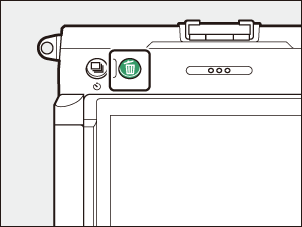
Press O again.
The picture will be deleted.
Deleting Multiple Pictures
Use [Delete] in the playback menu to delete multiple pictures at once. Note that depending on the number of pictures, some time may be required for deletion.
| Option | Description | |
|---|---|---|
| Q | [Selected pictures] | Delete selected pictures. |
| d | [Candidates for deletion] | Delete pictures rated d (candidate for deletion). |
| i | [Pictures shot on selected dates] | Delete all pictures taken on selected dates. |
| R | [All pictures] |
Delete all pictures in the folder currently selected for [Playback folder] in the playback menu. |
Deleting Selected Pictures
-
Select pictures.
-
Highlight pictures and press the W (Q) button to select; selected pictures are marked with a check (
 ). To remove the check (
 ) and deselect the current picture, press the W (Q) button again.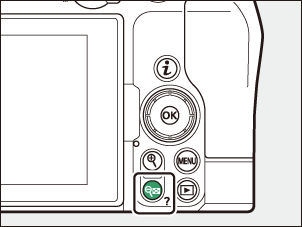
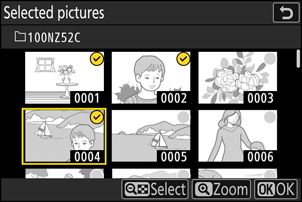
- Repeat until all the desired pictures are selected.
- To view the highlighted picture full screen, press and hold the X button.
-
-
Delete the pictures.
- Press J; a confirmation dialog will be displayed.
- Highlight [Yes] and press J to delete the selected pictures.
Candidates for Deletion
-
Select pictures.
- The camera will list all pictures rated d (candidate for deletion). Pictures you do not currently wish to delete can be deselected by highlighting them using the multi selector and pressing W (Q).
- To view the highlighted picture full screen, press and hold the X button.
-
Delete the pictures.
- Press J; a confirmation dialog will be displayed.
- Highlight [Yes] and press J to delete the selected pictures.
Pictures Shot on Selected Dates
Select dates.
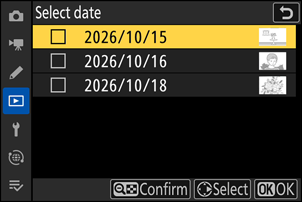
- Highlight dates using the multi selector and press 2 to select; selected dates are marked with M icons. Selected dates can be deselected by pressing 2 again.
- Repeat until you have selected all the desired dates.
-
Delete the pictures.
- Press J; a confirmation dialog will be displayed.
- Highlight [Yes] and press J to delete all the pictures taken on the selected dates.