
Using NX Tether to Control the Wi-Fi-Connected Camera
Use NX Tether software for tethered photography, which allows you to remotely adjust exposure, white balance, and other camera settings, and control the camera for shooting from a computer. Photos can be saved directly to a computer instead of a memory card, allowing them to be taken even when no memory card is inserted in the camera.
- You will still need to insert a memory card when filming videos.
- Note that the camera standby timer does not expire when the camera is remotely controlled.
Installing NX Tether
You will need an Internet connection when installing NX Tether. Visit the Nikon website for the latest information, including system requirements.
Download the latest NX Tether installer from the website below and follow the on-screen instructions to complete installation.
- Note that you may be unable to control the camera remotely using earlier versions of NX Tether.
Controlling the Camera with NX Tether
Connect the camera and computer via wireless LAN (0Computers: Connecting via Wireless LAN).
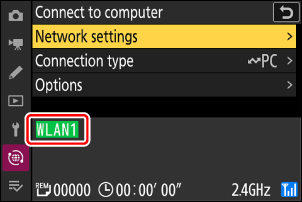
After creating a profile, confirm that the profile name is listed in green in the [Connect to computer] display.
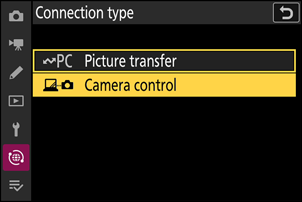
Select [Camera control] for [Connect to computer] > [Connection type] in the network menu.
Launch the copy of NX Tether installed on the host computer.
Control the camera using NX Tether.
See online help for detailed instructions.
You can also control the camera from a computer connected via USB (0Using NX Tether to Control the USB-Connected Camera).
The [Connect to computer] Camera Control Display
The [Connect to computer] display shows the following:
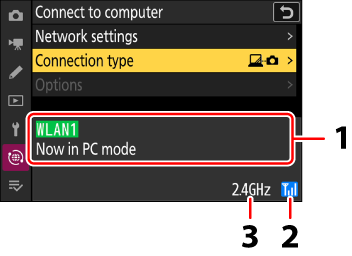
- Status: The status of the connection to the host. The profile name is displayed in green when a connection is established. Errors are also displayed here (0Troubleshooting Wireless LAN Connections).
- Signal strength: The wireless signal strength.
- Band: When connecting wirelessly in Wi-Fi station mode, the radio frequency band of the connected SSID network is displayed. In Wi-Fi access point mode, the radio frequency band that the camera is outputting is displayed.
Loss of signal while the camera is connected to a wireless network may disrupt the connection to the computer. Select [End current connection] for [Connect to computer] > [Network settings] in the network menu before connecting to the network again. When the signal is re-established, the camera will reconnect to the computer and resume upload of any pictures that have yet to be transferred. Note that upload cannot be resumed if you turn the camera off before transfer is complete.