
Uploading Pictures to a Computer
Pictures taken with the camera can be selected for upload to a computer during playback. They can also be uploaded automatically as they are taken.
Before uploading pictures, connect the camera to the destination via wireless LAN (0Computers: Connecting via Wireless LAN). After creating a profile, confirm that the profile name is listed in green in the [Connect to computer] display.
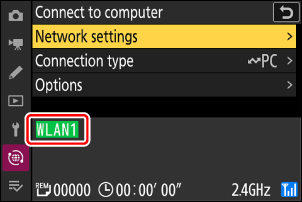
Select [Picture transfer] for [Connect to computer] > [Connection type] in the network menu.
Caution: Wi-Fi Access Point Mode
Select a host profile and enable camera Wi-Fi before connecting.
Destination Folders for Upload to a Computer
By default, pictures are uploaded to the following folders:
- Windows: \Users\(user name)\Pictures\Wireless Transmitter Utility
- macOS: /Users/(user name)/Pictures/Wireless Transmitter Utility
- The destination folder can be selected using the Wireless Transmitter Utility.
See online help for detailed instructions.
Selecting Pictures for Upload
Press the K button on the camera and select full-frame or thumbnail playback.
Select a picture and press the i button.
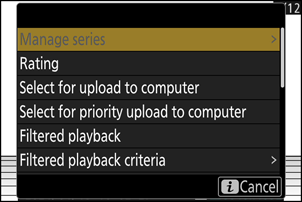
Highlight [Select for upload to computer] or [Select for priority upload to computer] and press J.
- Selecting [Select for upload to computer] displays a white “upload” icon and pictures will be uploaded in the specified order. Pictures with this marking will be added to the end of the upload queue and will not begin uploading until all other pictures have uploaded.
- Selecting [Select for priority upload to computer] displays a white “priority upload” icon, and pictures selected for priority upload will begin uploading immediately even if pictures marked for upload already are in the upload queue.
- Upload will begin when a connection is established.
- Repeat Steps 2–3 to upload additional pictures.
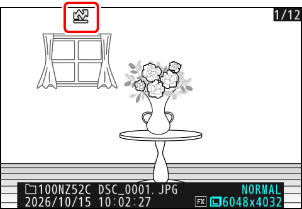
- Repeat Steps 2–3 to remove upload marking from selected pictures.
- To remove upload marking from all pictures, select [Connect to computer] in the network menu and choose [Options] > [Deselect all?].
The [Filtered playback] item in the playback i menu can be used to display only pictures that meet chosen criteria (0Filtered Playback). The pictures can then all be selected for upload by highlighting [Select all for computer upload] in the i menu and pressing J.
Uploading Photos as They Are Taken
To upload new photos as they are taken, select [Connect to computer] in the network menu and choose [ON] for [Options] > [Auto upload].
- Upload begins only after the photo has been recorded to the memory card. Be sure a memory card is inserted in the camera.
- Videos are not uploaded automatically. They must instead be uploaded manually from the playback display.
The Upload Icon
Upload status is indicated by the upload icon.
- s (white): Priority upload
- This icon appears on pictures selected with [Select for priority upload to computer]. Pictures marked with this icon will be uploaded before pictures marked W (“upload”).
- W (white): Upload
- This icon appears on pictures with the following upload status. The pictures will be sent in the order in which they were taken or selected for upload.
- Marked for auto upload,
- Selected with [Select for upload to computer], or
- Filtered with a “select all for upload” option.
- X (green): Uploading
- Upload in progress.
- Y (blue): Uploaded
- Upload complete.
The [Connect to computer] Upload Status Display
The [Connect to computer] display shows the following:
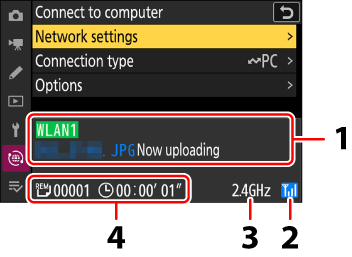
- Status:
The status of the connection to the host. The profile name is displayed in green when a connection is established.
While files are being transferred, the status display shows “Now uploading” preceded by the name of the file being sent. Errors are also displayed here.
- Signal strength: The wireless signal strength.
- Band: When connecting wirelessly in Wi-Fi station mode, the radio frequency band of the connected SSID network is displayed. In Wi-Fi access point mode, the radio frequency band that the camera is outputting is displayed.
- Pictures/time remaining: The number of pictures remaining and the time needed to send them. The time remaining is an estimate only.
Wireless transmission may be interrupted if the signal is lost. Upload of pictures with upload marking can be resumed by turning the camera off and then on again once the signal has been re-established.
Do not remove or insert the memory card during upload.
Voice memos will be included when the associated pictures are transmitted. They cannot, however, be uploaded separately.
The camera saves transfer marking when turned off and resumes upload when next turned on.