
The Video Playback i Menu
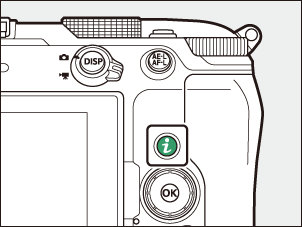
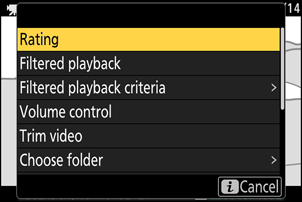
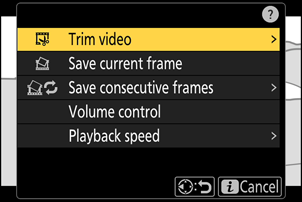
Pressing the i button when a video is selected for playback in full frame or thumbnail displays the i menu for video playback. Pressing the i button while video playback is paused displays the i menu for paused video playback. Highlight an item and press J or 2 to view options for the selected item.
Press the i button again to return to playback.
Videos
Videos (playback paused)
Videos
| Option | Description |
|---|---|
| [Rating] | Rate the current video (0Rating Pictures). |
| [Select for upload to computer] | Select the current video for upload (0Selecting Pictures for Upload).
|
| [Select for upload (FTP)] | |
| [Select for priority upload to computer] | Select the current video for priority upload (0Selecting Pictures for Upload). Pictures marked for priority upload will be uploaded before other pictures marked for upload.
|
| [Select for priority upload (FTP)] | |
| [Select all for upload to The Cloud] | Mark for upload all pictures meeting the current filter criteria (0Filtered Playback).
|
| [Select all for computer upload] | |
| [Select all for upload (FTP)] | |
| [Filtered playback] | View only pictures that match selected criteria (0Filtered Playback). |
| [Filtered playback criteria] | Choose filter criteria. |
| [Volume control] | Adjust playback volume. |
| [Trim video] | Trim footage from the current video and save the edited copy in a new file (0Trimming Videos). |
| [Choose folder] | Choose a folder for playback. Highlight a folder and press J to view the pictures it contains. |
| [Protect] | Add protection to or remove protection from the current video (0Protecting Pictures from Deletion). |
| [Unprotect all] | Remove protection from all pictures in the folder currently selected for [Playback folder] in the playback menu. |
| [Slide show] | View a slide show; the current picture and all following pictures are displayed one at a time in the order recorded (0Viewing Slide Shows). |
| [Playback speed] | Select the video playback speed from [Original speed], [1/2× speed], and [1/4× speed]. Selecting [1/2× speed] or [1/4× speed] will slow video playback at ¹/₂× or ¹/₄× the speed. The playback speed selection will be applied to all video playback. |
Videos (Playback Paused)
| Option | Description | |
|---|---|---|
| 9 | [Trim video] | Trim unwanted footage (0Trimming Videos). |
| 4 | [Save current frame] | Save a selected frame as a JPEG still (0Saving the Current Frame as a JPEG Still). |
| 1 | [Save consecutive frames] | Save the frames in a selected length of footage as a series of individual JPEG images (0Creating Stills from a Selected Length of Footage). |
| [Volume control] | Adjust playback volume. | |
| [Playback speed] | Select the video playback speed from [Original speed], [1/2× speed], and [1/4× speed]. Selecting [1/2× speed] or [1/4× speed] will slow video playback at ¹/₂× or ¹/₄× the speed. The playback speed selection will be applied to all video playback. | |