
Direct Wireless Connection to an FTP Server (Wi-Fi Access Point Mode)
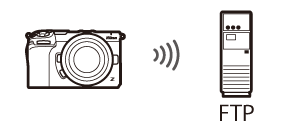
The camera and FTP server connect via direct wireless link. The camera acts as a wireless LAN access point, allowing you to connect when working outdoors and in other situations in which the FTP server is not already connected to a wireless network and eliminating the need for complicated adjustments to settings.
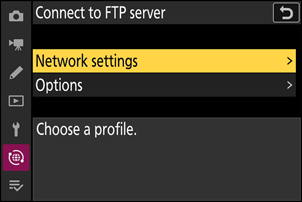
Select [Connect to FTP server] in the network menu, then highlight [Network settings] and press 2.
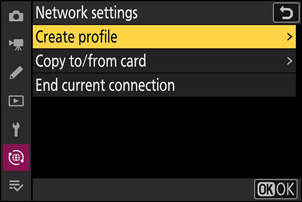
Highlight [Create profile] and press J.
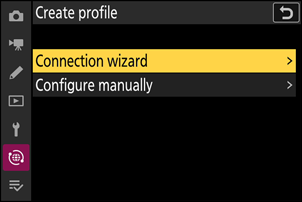
Highlight [Connection wizard] and press 2.
The connection wizard will launch.
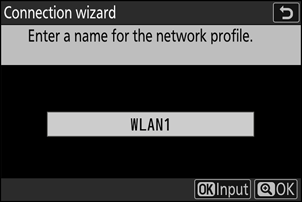
Name the new profile.
- To proceed to the next step without changing the default name, press X.
- Whatever name you choose will appear in the network menu [Connect to FTP server] > [Network settings] list.
- To rename the profile, press J. For information on text entry, see “Text Entry” (0Text Entry). Press X to proceed after entering a name.
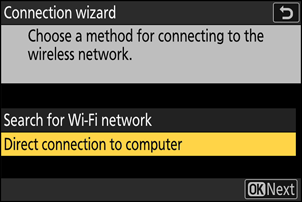
Highlight [Direct connection to computer] and press J.
The camera SSID and encryption key will be displayed.
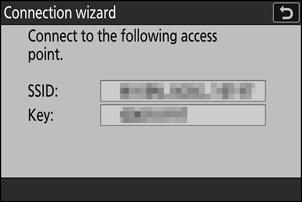
Establish a connection to the camera.
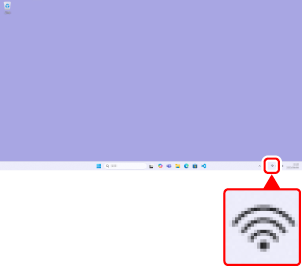
Windows:
- Click the wireless LAN icon in the taskbar.
- Select the SSID displayed by the camera in Step 5.
- When prompted to enter the network security key, enter the encryption key displayed by the camera in Step 5. The computer will initiate a connection to the camera.
macOS:
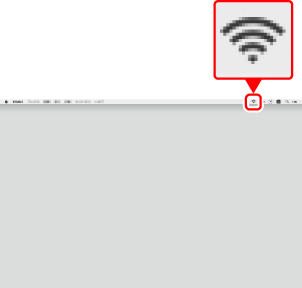
- Click the wireless LAN icon in the menu bar.
- Select the SSID displayed by the camera in Step 5.
- When prompted to enter the network security key, enter the encryption key displayed by the camera in Step 5. The computer will initiate a connection to the camera.
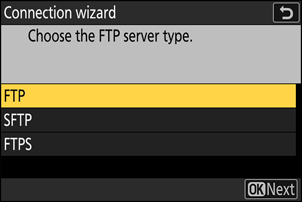
Choose the server type.
Highlight [FTP], [SFTP] (SSH FTP), or [FTPS] (FTP-SSL) and press J to display a dialog where you can enter the server port number.
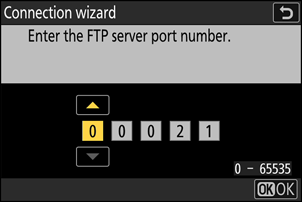
Enter the FTP server port number.
- Press 4 or 2 to highlight digits and press 1 or 3 to change.
- Press J to display a dialog where you can choose a login method.
The ports used for FTP vary with the server type. The port numbers are listed below.
- [FTP]: TCP ports 21 and 32768 through 61000
- [SFTP]: TCP ports 22 and 32768 through 61000
- [FTPS]: TCP ports 21 and 32768 through 61000
- File transfer may be blocked if the server firewall is not configured to allow access to the appropriate ports.
Log in.
Highlight one of the following options and press J.
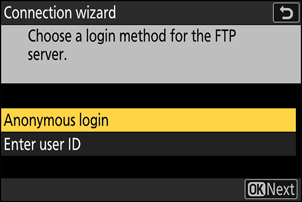
Option Description [Anonymous login] Select this option if the server does not require a user ID or password. This option can only be used with servers that are configured for anonymous login. If login is successful, the camera will prompt you to choose a destination. [Enter user ID] Enter a user ID and password. Press J to log in when entry is complete. If login is successful, the camera will prompt you to choose a destination. Choose a destination folder.
Highlight one of the following options and press J.
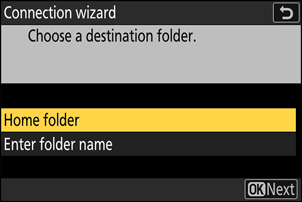
Option Description [Home folder] Select this option to select the server’s home folder as the destination for pictures uploaded from the camera. A “setup complete” dialog will be displayed if the operation is successful. [Enter folder name] Enter the destination folder name manually. The folder must already exist on the server. Enter the folder name and path when prompted and press J to display the “setup complete” dialog. Check the connection.
When a connection is established, the profile name will be displayed in green in the camera [Connect to FTP server] menu.
- If the profile name is not displayed in green, connect to the camera via the wireless network list on the FTP server.
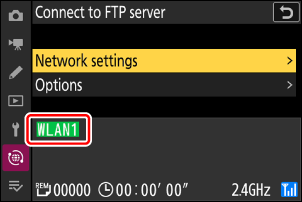
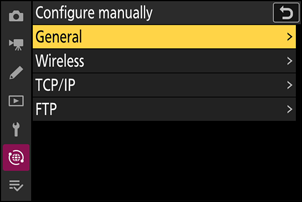
A wireless connection has now been established between the camera and the FTP server.
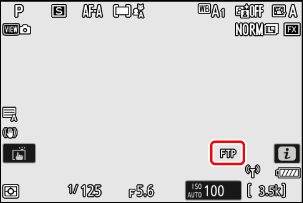
“FTP” will appear in the camera shooting display once a connection is established. If a connection error occurs, this indicator will be displayed in red together with a C icon.
Pictures taken with the camera can be uploaded to the FTP server as described under “Uploading Pictures to an FTP Server” (0Uploading Pictures to an FTP Server).