
Smart Devices: Connecting via Bluetooth (Pairing)
Before connecting via Bluetooth for the first time, you will need to pair the camera and smart device.
- Enable Bluetooth on the smart device. For details, see the documentation provided with the device.
- Ensure that the batteries in the camera and smart device are fully charged to prevent the devices turning off unexpectedly.
- Check that there is space available on the camera memory card.
Pairing
Pair the camera and smart device as described below.
Camera: Select [Connect to smart device] > [Pairing (Bluetooth)] in the network menu, then highlight [Start pairing] and press J.
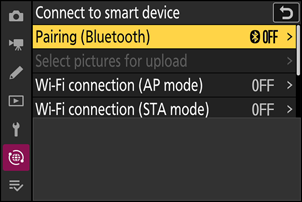
The camera name will be displayed in the monitor.
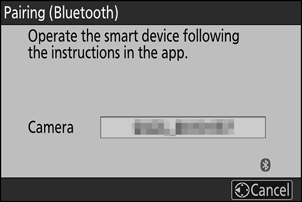
Smart device: Launch the SnapBridge app and tap [Connect to camera] in the
 tab.
tab.If this is the first time you have launched the app, you should instead tap [Connect to camera] in the welcome display.
Smart device: Follow the on-screen instructions.
- When prompted, tap the category for your camera and then tap the “pairing” option when prompted to choose the connection type.
- Tap the camera name when prompted.
Camera/smart device: After confirming that the camera and smart device display the same authentication code, follow the on-screen instructions on both devices to complete pairing.
- Tap the pairing button on the smart device and press the J button on the camera.
The camera and smart device will each display a message when pairing is complete. The camera will then automatically exit to the menus.
The camera and smart device are now paired.
For information on using the SnapBridge app, see online help.
If you wait too long between pressing the button on the camera and tapping the button on the smart device in Step 4, the device will display an error message and pairing will fail.
- If you are using an Android device, tap [OK] and return to Step 1.
If you are using an iOS device, dismiss the SnapBridge app and check that it is not running in the background, then request iOS to “forget” the camera before returning to Step 1. The request to “forget” the camera is made via the iOS “Settings” app.
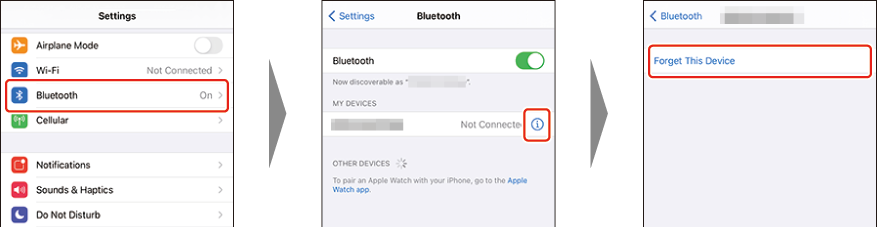
Can’t Connect to the Smart Device?
See also “Troubleshooting” in SnapBridge online help.
To disable Bluetooth, select [OFF] for [Connect to smart device] > [Pairing (Bluetooth)] > [Bluetooth connection] in the camera network menu.
Connecting to a Previously-Paired Smart Device
Once the smart device has been paired with the camera, you will be able to connect simply by enabling Bluetooth on both the smart device and camera and launching the SnapBridge app.
Ending Pairing
Tap  in the SnapBridge tab to select [Forget camera]. Tap the camera with which you want to end pairing and select [Yes].